Conversion of SQL Server database to XML using Full Convert
Purpose of this tutorial is to show you basic use of Full Convert Enterprise. To learn about advanced features such as built-in scheduler, data type customization, project customization rules, logging etc., take a look at the video tutorials.
The SQL Server to XML conversion using Full Convert is easy and you need to do just a few quick steps:
- Connect to your source and target database
- Optional: Choose which tables you want to convert (by default, all are selected)
- Start the conversion, sit back and enjoy
- Optional: Explore your brand new data in the target database, using a built-in database explorer
1. Connecting to databases
As we start Full Convert, you will notice a welcome panel with links for common tasks.
Let's create new conversion session. Click on the Create new conversion link, or click on the New button on the ribbon above.

Selecting source database
We will choose SQL Server from the list of available source database engines. Depending on your SQL Server setup, you will need to connect using Windows or SQL Server authentication. Depending on your SQL Server installation, we need to specify the server name, or server\instance name in the Server field. Note: for SQL Server Express, instance is required, like this: servername\SQLEXPRESS We have Windows authentication here, so all we need to do is select our desired database from the drop-down list.
Selecting target database
From the list of available target database engines, we'll choose XML. XML gives you great flexibility into getting the data converted or transformed. Full Convert allows you easy data exchange with many services which support XML data. Just type-in the folder containing your XML files, or click the ellipsis button on the right and Full Convert will display Browse for Folder dialog.
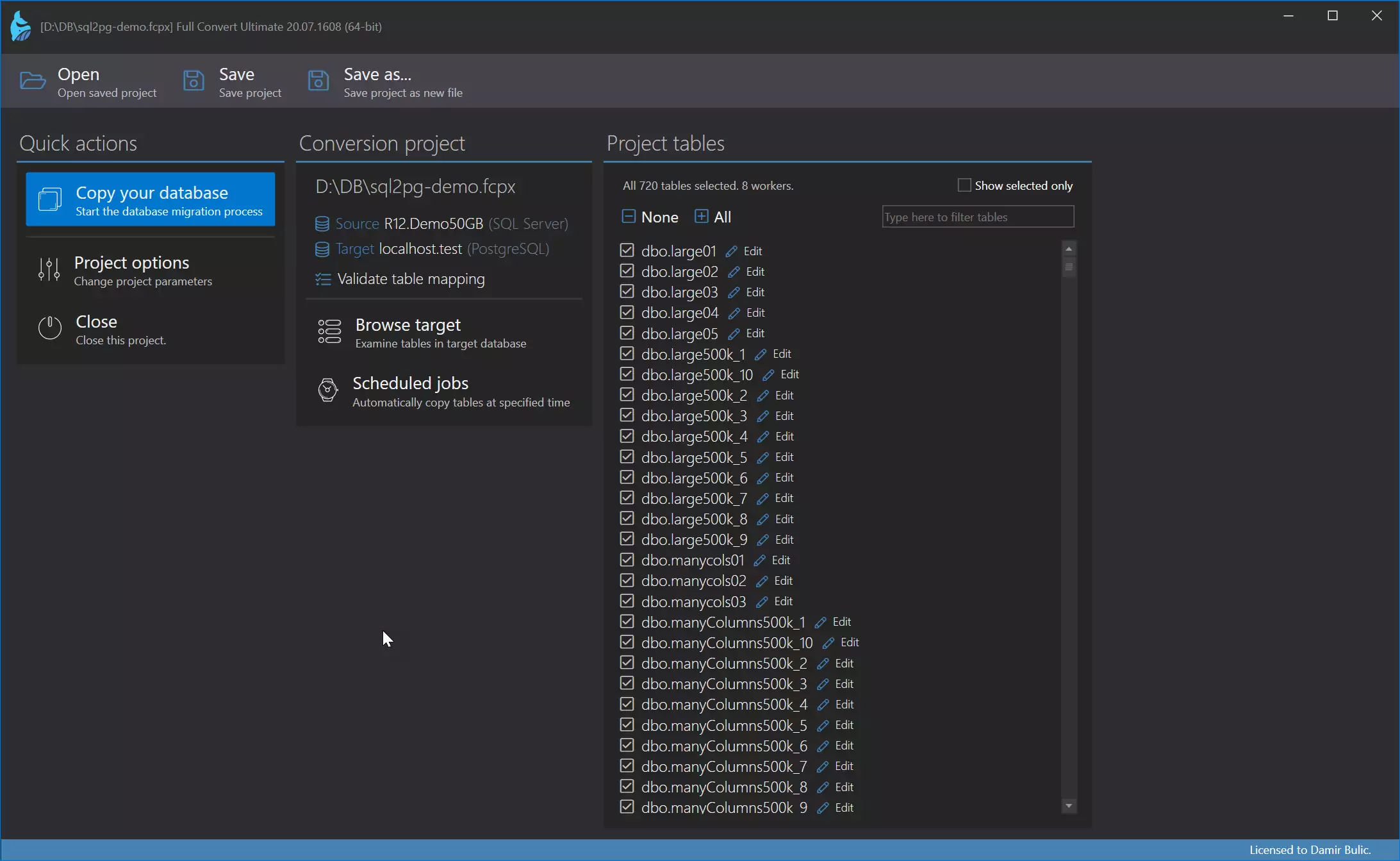
2. Selecting tables to convert. All by default.
We will now select tables for conversion. All tables in the right list will be converted from SQL Server to XML. Please note that you can count rows of tables to easily see where data actually resides. Clicking Unselect empty moves all empty tables to Do not convert list.
Clicking Next button brings us to the last page in the wizard, the summary. By default, I want to convert immediately option is selected. We will just leave this on to start right away. Otherwise, you can also choose to only explore target database at this point (as Full Convert has full-fledged database/data explorer built-in) and simply press Convert! button in ribbon when ready.
3. Conversion
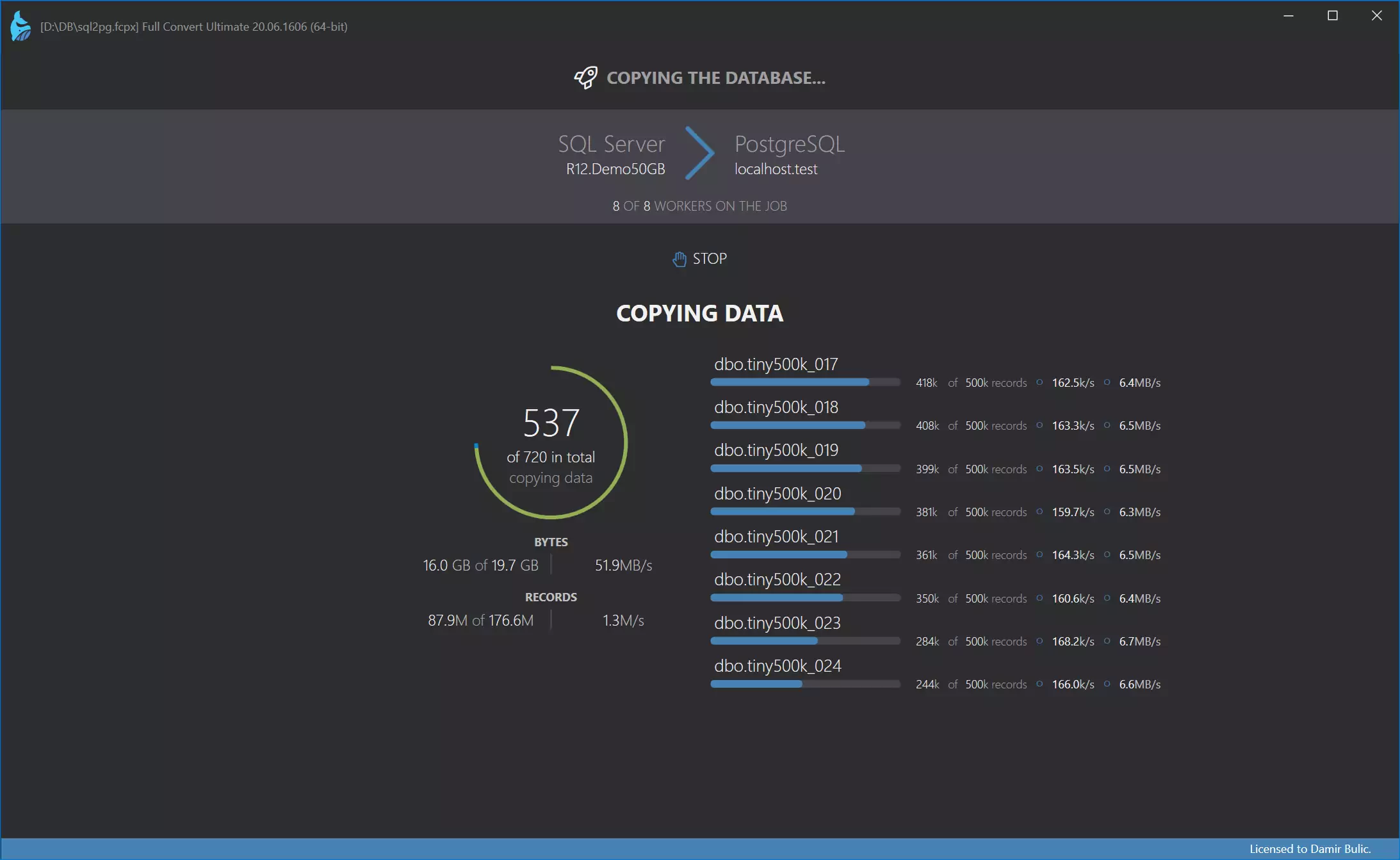
Full Convert is very fast. We use dedicated native database components instead of relying on translation libraries like ODBC which incur performance hit and often have bugs of their own. Reaching transfer of 20.000 records per second is not uncommon. Of course, that speed can't be reached with slow databases (like Access, for example), when large binary data is in table, or when network lag is an issue.

Detailed summary
After SQL Server to XML conversion is finished, you will be presented with a summary. If errors occur, you will be able to inspect then in a separate tab. If appropriate, we will provide you with suggestions of how to further speed up transfer or avoid errors in conversion. Also, you can choose to have SQL commands displayed, so you can explore the generated SQL script and save it for use in your other database tools.
Have you noticed that we migrated 700k records in less than a minute? By the way, Full Convert handles databases of unlimited size!

Navigating the target database
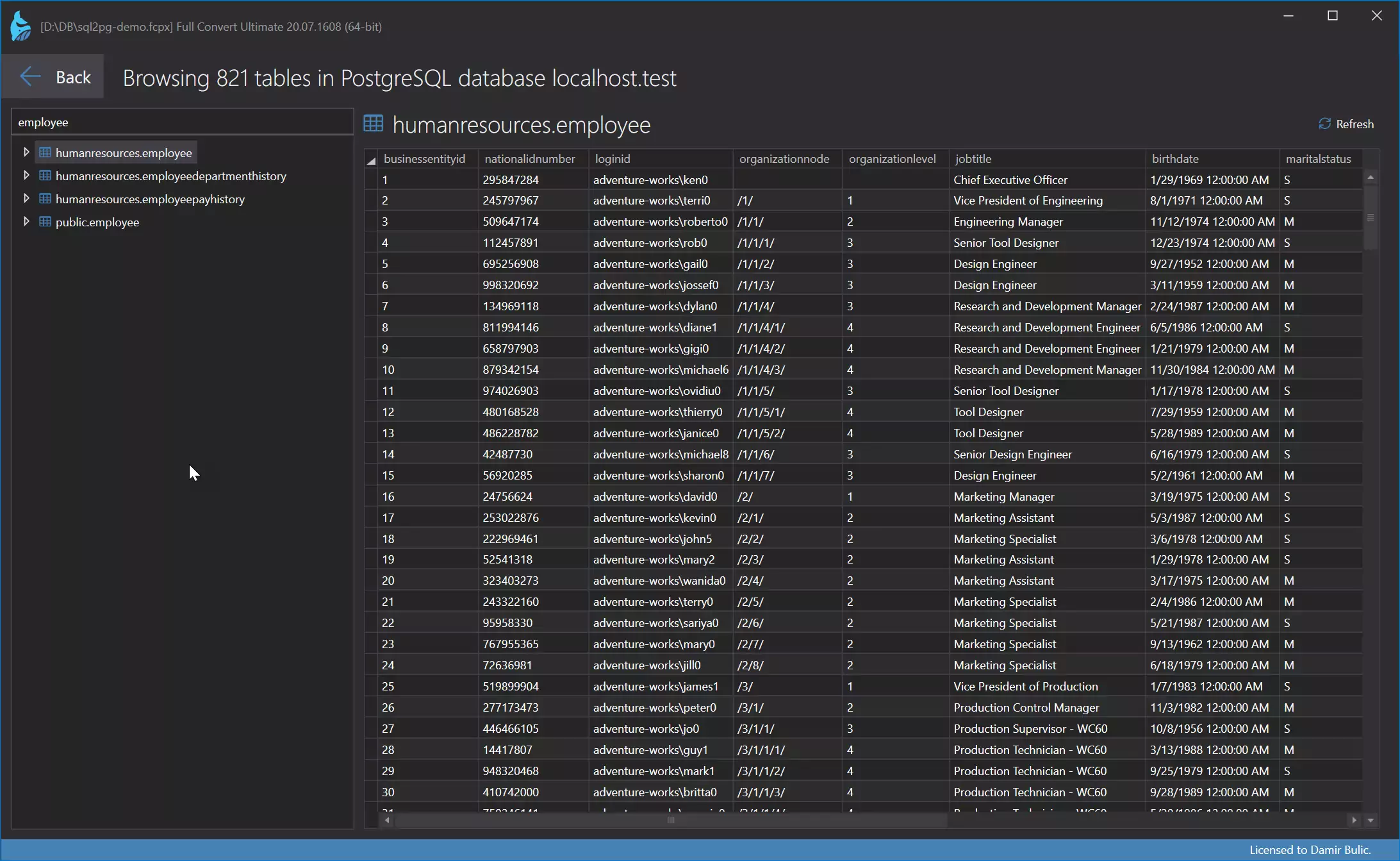
Navigating structure tree shows us what the target database looks like now. You are free to do further modifications on structure, rename columns or change their type, drop obsolete columns, extract part of a table to new table etc.
You can also explore the data of each table, edit the data directly in the powerful grid, import/export cell values from/to disk and more.

That's all for this basic SQL Server to XML conversion tutorial. Full Convert is very powerful - it's very easy to use, but offers much more than presented here.
We invite you to explore Full Convert more, and, of course, to purchase it. If you want to test it yourself, just download a free trial.