1.
Run your conversion project
Run your conversion project. Full Convert creates target tables and copies data according to your mappings.
After a run, you want a quick check. Did the tables land where expected? Do the values look right? Open the target, click a table, inspect the data. Without switching tools.
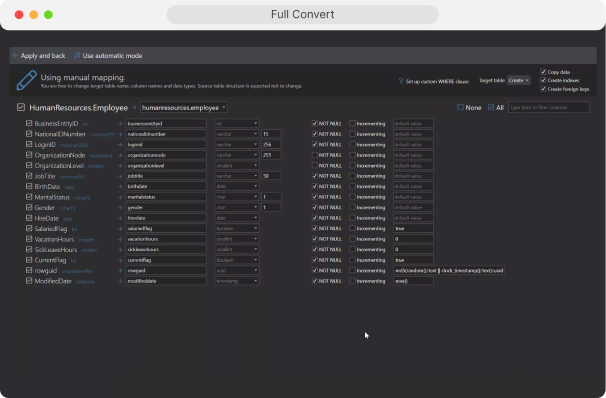

The data browser is built for the moments right after a conversion, when you want fast feedback before declaring a migration “done”.
Browse tables in the target database and look at the rows that were written, all from inside Full Convert. No need to open a separate SQL client just to confirm that the copy worked.
If something looks off, you can jump straight to the table, then go back to mapping and project options instead of guessing. Full Convert surfaces per-table conversion detail alongside the browsing step so you know what happened.
In short, the browser is an inspection tool for your target database around the conversion workflow, not a full replacement for your primary SQL IDE.
When you use Full Convert's comparison feature, the same built-in browser can list every single difference detected between source and target, row by row and column by column. That makes it easy to see exactly what changed, validate synchronization runs, and explain differences to teammates or auditors.
Learn how comparison and synchronization work together with the data browser.
Full Convert's quick-start flow explicitly includes a “Browsing the data” step after conversion review. The idea is simple: review the summary, then click through to the rows themselves.
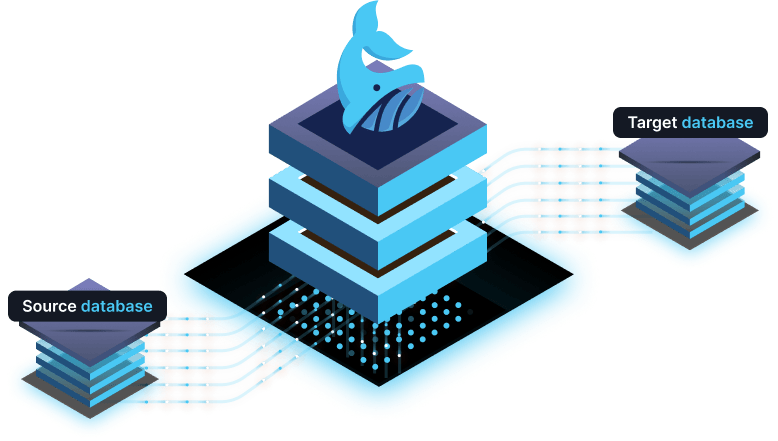
Run your conversion project. Full Convert creates target tables and copies data according to your mappings.
Review the conversion summary. Check which tables ran, how long they took, and whether any errors occurred.
Browse the data. Open the built‑in browser, pick a table in the target, and quickly scan the results to confirm that values and row counts look right.
Iterate when needed. If you see something unexpected, adjust mappings or options and run again, no context switching required.
Full Convert is used by thousands of
organizations in 100+ countries.