1.
Save your project
Use the GUI to configure your source, target, mappings, and options. Save everything into a project file that both the app and console can reuse.
The built-in scheduler uses the Full Convert console and Windows Task Scheduler to keep your target databases fresh. No manual clicks. No custom tooling. Ideal for nightly refreshes from production to staging, reporting, or test environments.
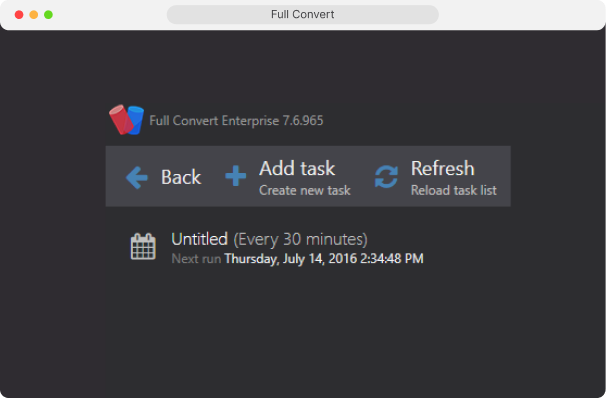

Full Convert’s scheduler is a friendly front‑end over Windows Task Scheduler. You design the migration once, save the project, and the scheduler wires it up to run via FullConvertConsole.exe on a schedule.
Use the GUI to configure your source, target, mappings, and options. Save everything into a project file that both the app and console can reuse.
In the Scheduler view, add a new task and point it at your saved project. Choose when and how often it should run, for example, every night at 2 AM.
When the time comes, Windows launches the Full Convert console, which runs your migration using the exact same engine as the desktop application.
For periodic refreshes, pair the scheduler with Full Convert's comparison and replication so each run applies only what changed. If you need real-time change streaming, use Omni Loader.
The Task editor lets you fine‑tune how and when a project runs, without scripting. You focus on the migration, not on scheduling plumbing.
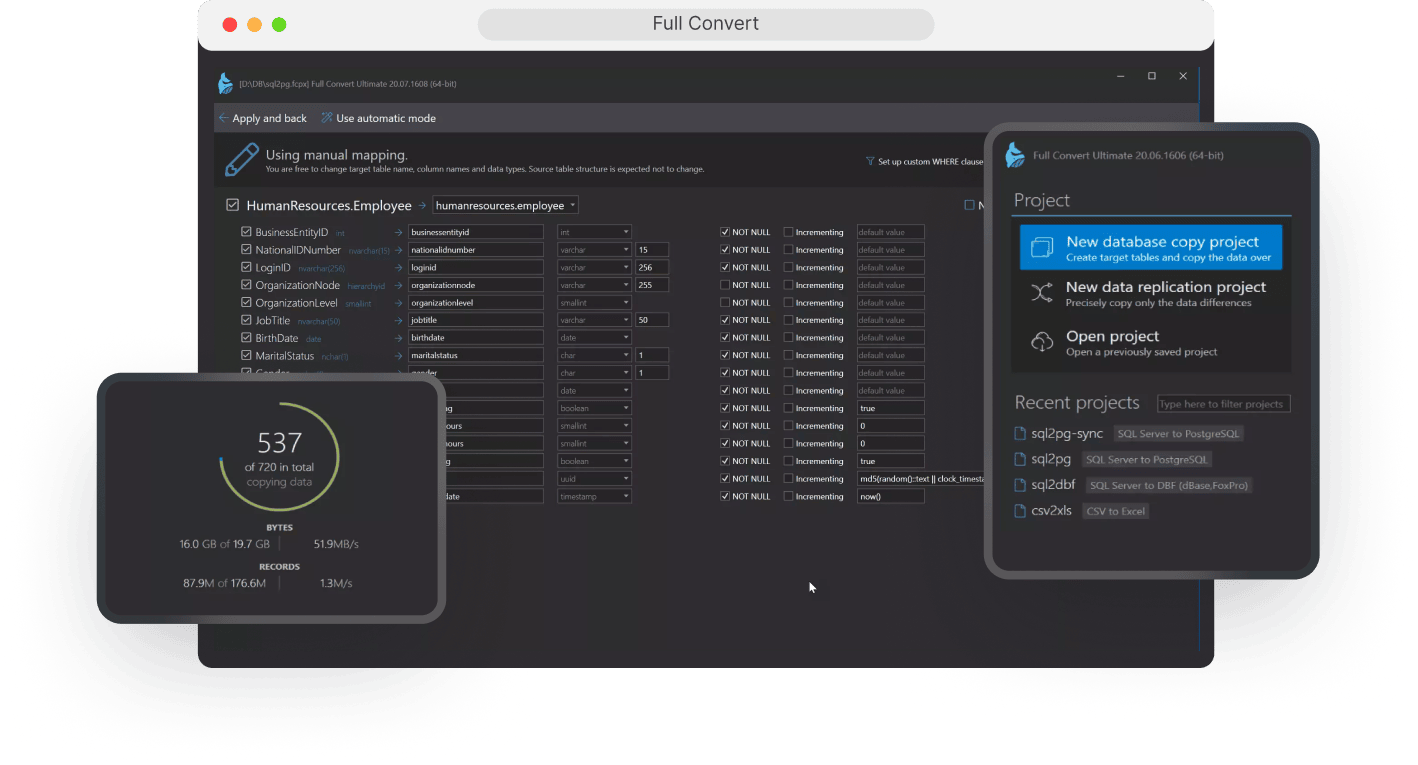
Configure when and how migration or replication jobs run, with full control over timing and execution.

Run once, daily, weekly, or on a custom cadence.
Pick off-peak times when the target database is least used.
Pause or delete tasks from a single overview screen.
Choose how log files are created and stored for each task.
Folder: create a timestamp-named folder on every run and store logs inside.
Overwrite: keep only the latest logs by overwriting files each time the job runs.
Balance disk usage with audit requirements using configurable logging strategies.
Best practices
A few best practices from our documentation so your scheduled tasks run smoothly every time.
Run tasks under the same Windows user that activated Full Convert.
Use UNC paths for projects and network databases instead of mapped drives.
Test runs directly in the console first, then enable the schedule.
The scheduler is perfect when a daily or hourly refresh is good enough and you're okay with a brief window while tables are being repopulated. If you need your target to stay current without that repopulation window, pair Full Convert with comparison-based replication, which applies only the rows that changed. For real-time change streaming, use Omni Loader.
Full Convert is used by thousands of
organizations in 100+ countries.