Automate from the command line
FullConvertConsole.exe gives you the full Full Convert engine from the command line. Schedule conversions, plug into CI/CD, run migrations non-interactively on your servers. Included in every Full Convert installation on Windows.
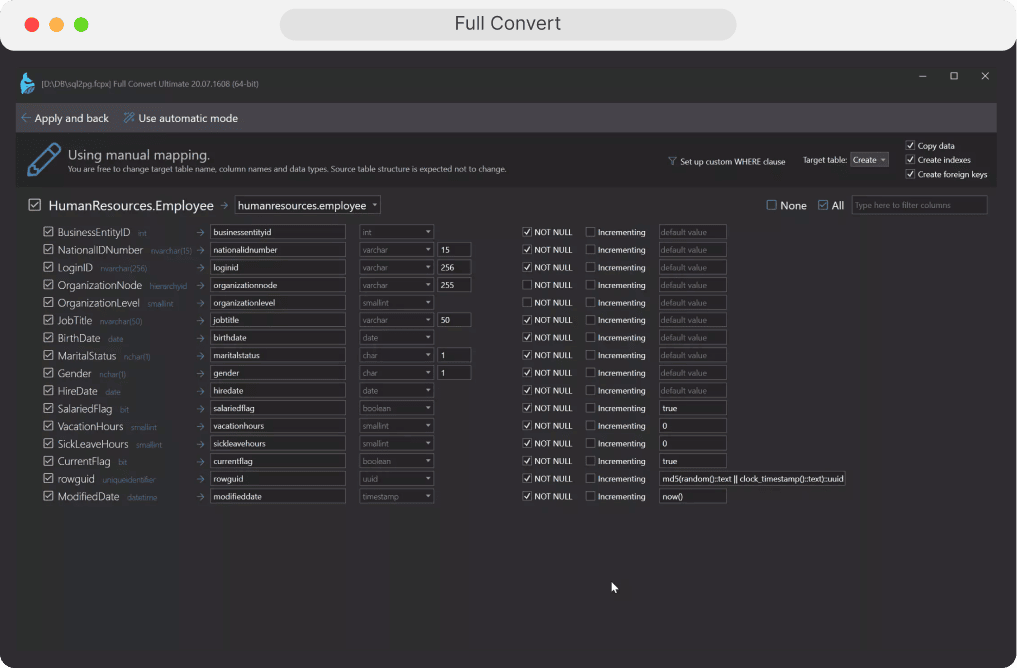
Typical automation scenarios
Console version can be used in shell/batch script (*.bat, *.cmd or *.ps1) files, invoked by our built-in scheduler or invoked by directly executing command in the "Command Prompt" (cmd.exe), "Windows PowerShell" (powershell.exe), "PowerShell" (pwsh.exe).

Nightly conversions
Run nightly conversions from production to staging.

Trigger migrations
Trigger migrations from your CI/CD pipeline.

Databases in sync
Let Windows Task Scheduler keep databases in sync.

Capture detailed logs
Capture detailed logs for auditing and troubleshooting.
Two simple ways to use the console
Start with a saved Full Convert project, or drive everything from the command line with connection overrides. Either way, the console runs the same high‑performance engine as the UI.
Run an existing project
The easiest way to automate a migration is to design it once in the GUI and then execute it from the console:
The console loads the project, connects to your databases, and runs the conversion or replication exactly as configured.
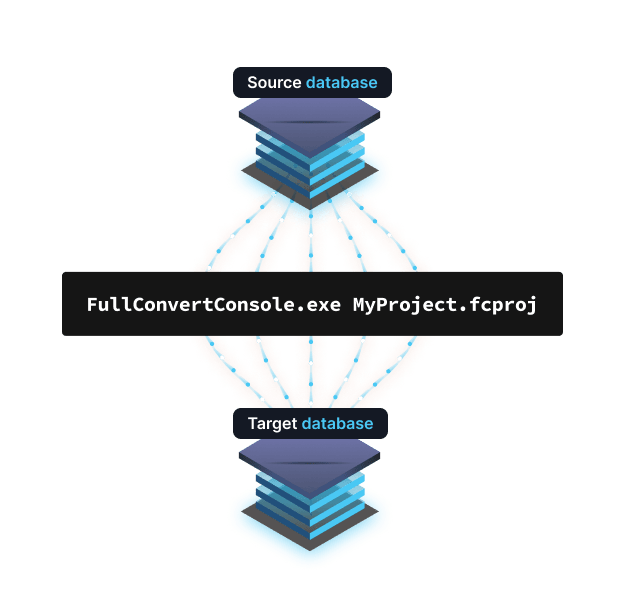
FullConvertConsole.exe ^
  -OSC "engine=sqlserver;server=localhost;database=SourceDb;username=sa;password=***" ^
  -OTC "engine=postgres;server=localhost;database=target;username=postgres;password=***" ^
  -TYPE conversion
Run using connection overrides
For fully scripted scenarios, you can skip the project file and pass source and target connections directly:
FullConvertConsole.exe ^ -OSC
"engine=sqlserver;server=localhost;database=SourceDb;username=sa;password=***" ^ -OTC
"engine=postgres;server=localhost;database=target;username=postgres;password=***" ^ -TYPE conversion
-OSC overrides the source connection and -OTC overrides the target connection. This is ideal for dynamic environments and parameterized scripts.
Key console options at a glance
The console exposes the same flexibility as the UI through a focused set of options for choosing the job type, selecting tables, and capturing logs.

Job type
Use -TYPE <conversion/datareplication> to tell the console whether to run a one-off migration or a replication job. Conversion handles full schema and data moves. Data replication keeps an existing target database in sync with changes from the source.

Table selection
Use -TABLES with a semicolon-delimited list to restrict work to specific tables, or * to process everything. This makes it easy to script partial migrations, split work across jobs, or focus on the largest tables during off-peak windows.

Logging strategy
Combine -STRATEGY (Overwrite / Folder / Timestamp) with log options like -LS, -LE, -LSQL, -LSQLE, and -LJSON to capture exactly the detail you need. Keep lightweight summary logs for every run, detailed JSON for performance analysis, and full SQL traces only when troubleshooting.
Connection overrides in a nutshell
Connection overrides let your scripts control where Full Convert reads and writes without editing project files.
-OSC, override individual source connection parameters.
-OTC, override individual target connection parameters.
Pass multiple param=value pairs separated by semicolons (for example engine=sqlserver;server=localhost;database=adv).
Use connection parameters that match the database engine, such as server, database, port, username, password, and others documented for each driver.
Common engine values
A few of the many engines you can target via connection overrides:
sqlserver. SQL Server
postgres. PostgreSQL
mysql. MySQL
mariadb. MariaDB
sqlite. SQLite
access. Access
csv. CSV files
dbf, dBase / FoxPro
oracle. Oracle Database
verticaodbc. Vertica via ODBC
For the full list and all parameters, see the official connection override reference in the documentation.
Migrate your data now.
Full Convert is used by thousands of
organizations in 100+ countries.