Convert SQL Server Express LocalDB to Excel
Full Convert is designed for ease of use and reliability. Get the migration done quickly and simply, without surprises.

Making migration easy for you
Full Convert is a fully self-tuning software. Your migration will work as expected without you needing to adjust anything.
Data types are different in Excel compared to SQL Server Express LocalDB . We automatically adjust them as we copy the tables so you don't have to worry about it. You can adjust the mapping rules if you wish to change the following defaults:
Full Convert migration in 4 easy steps
SQL Server Express LocalDB
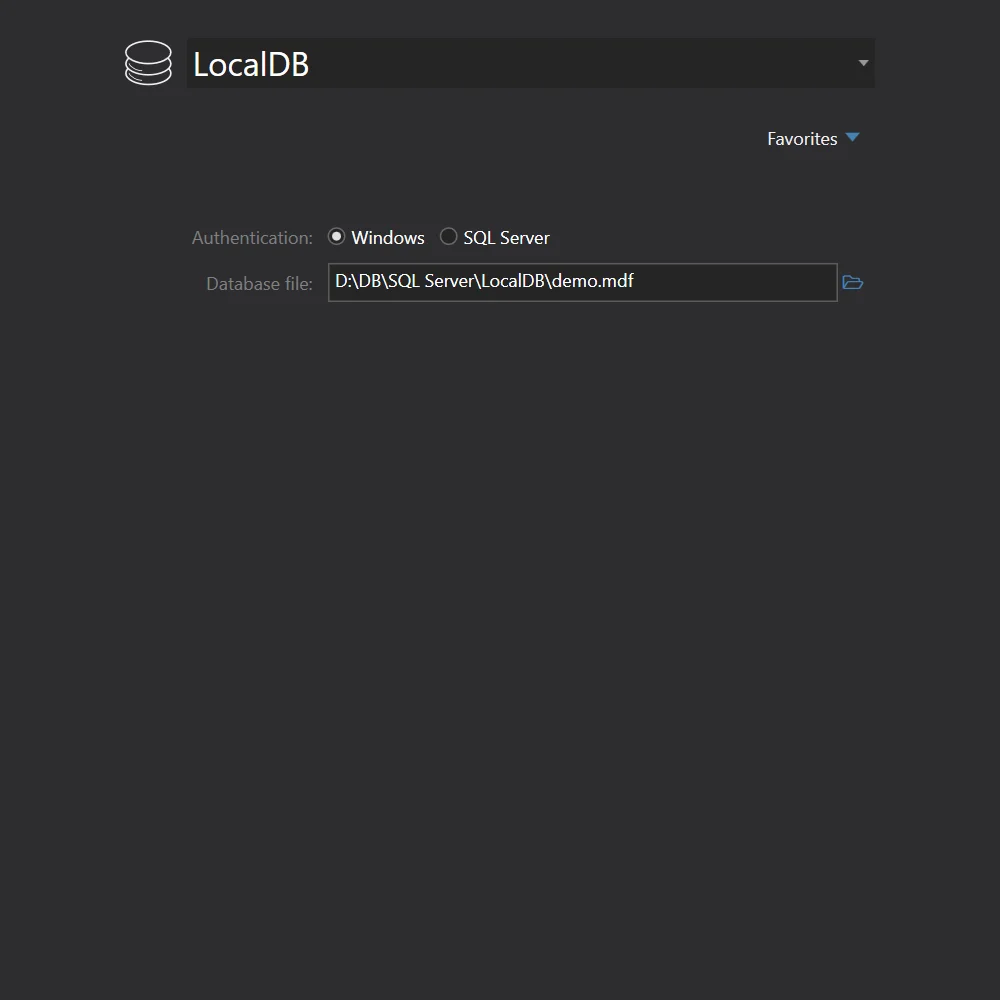
We will select SQL Server Express LocalDB from the drop down and fill out the connection parameters.
Excel
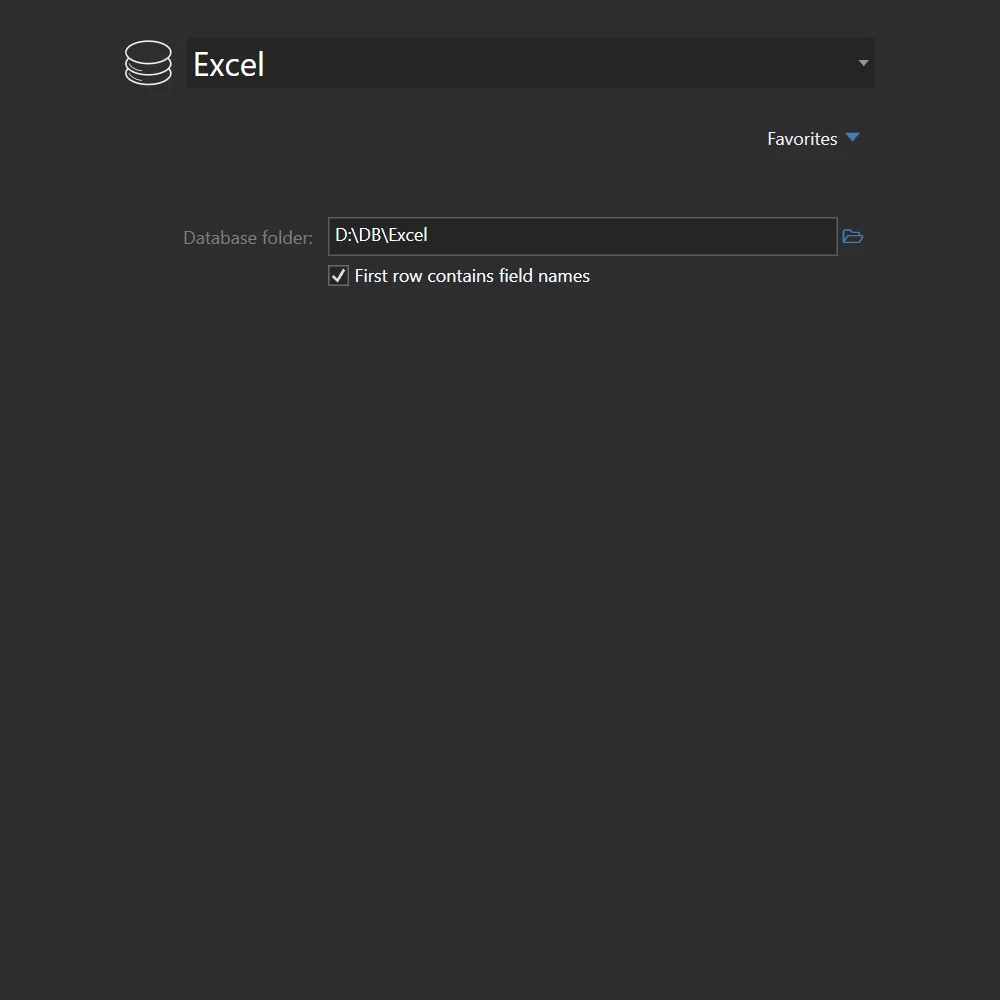
We will choose Excel from the list of available database formats. Full Convert supports all versions of Excel documents from Excel 97 to Excel 2007. XLS and XLSX files are read flawlesly. Formulas will be calculated during the conversions, so target database will have formula results stored, not the formula expression texts. Just type-in the folder containing your Excel documents, or click the ellipsis button on the right and Full Convert will display Browse for Folder dialog. You don't even need to have Excel installed to be able to convert your Excel documents. We directly read your Excel files.
Start the conversion
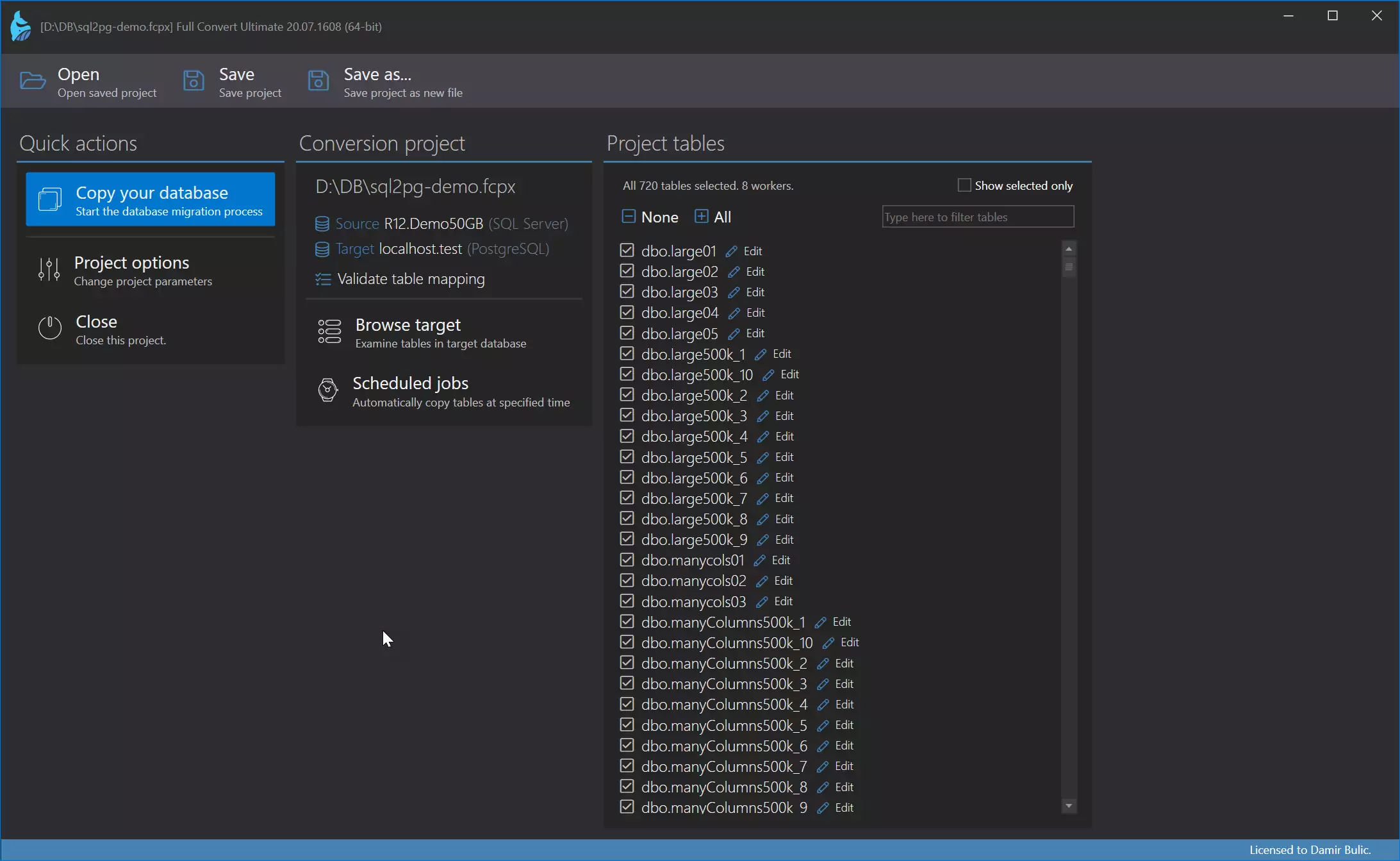
All source tables are selected for conversion by default. In case you only need some tables, simply deselect the ones you don't need - or deselect all, then select just the tables you do need. Click the Copy your database button to get started.
Click the Copy your database button to get started.
Conversion
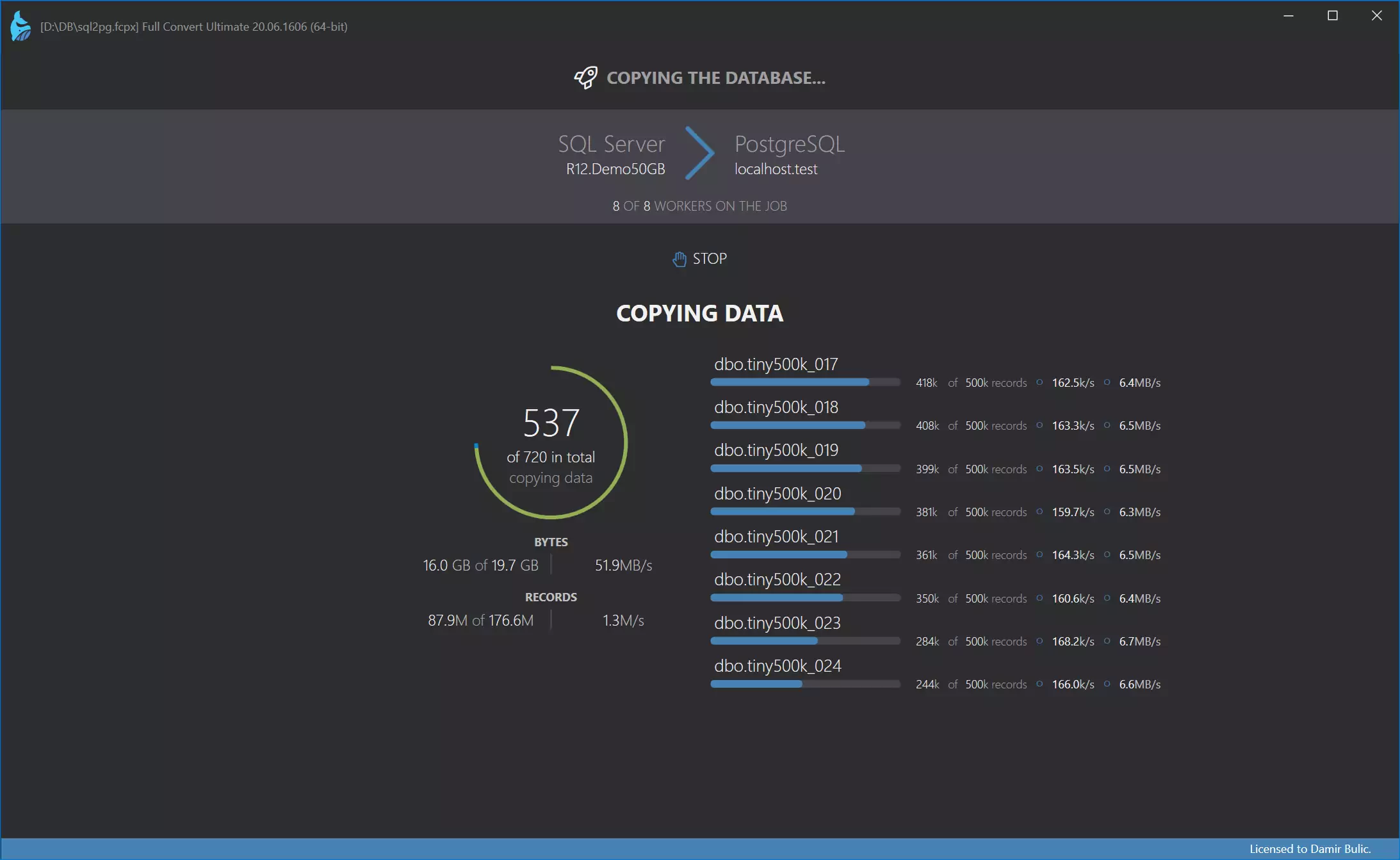
Conversion is highly-optimized to run as fast as possible, yet provides top-notch reliability. Huge tables are converted in small chunks at a time, preserving memory and ensuring that your computer stays fast and responsive.
Data is now in the target database
Use our built-in database browser to examine the copied data.
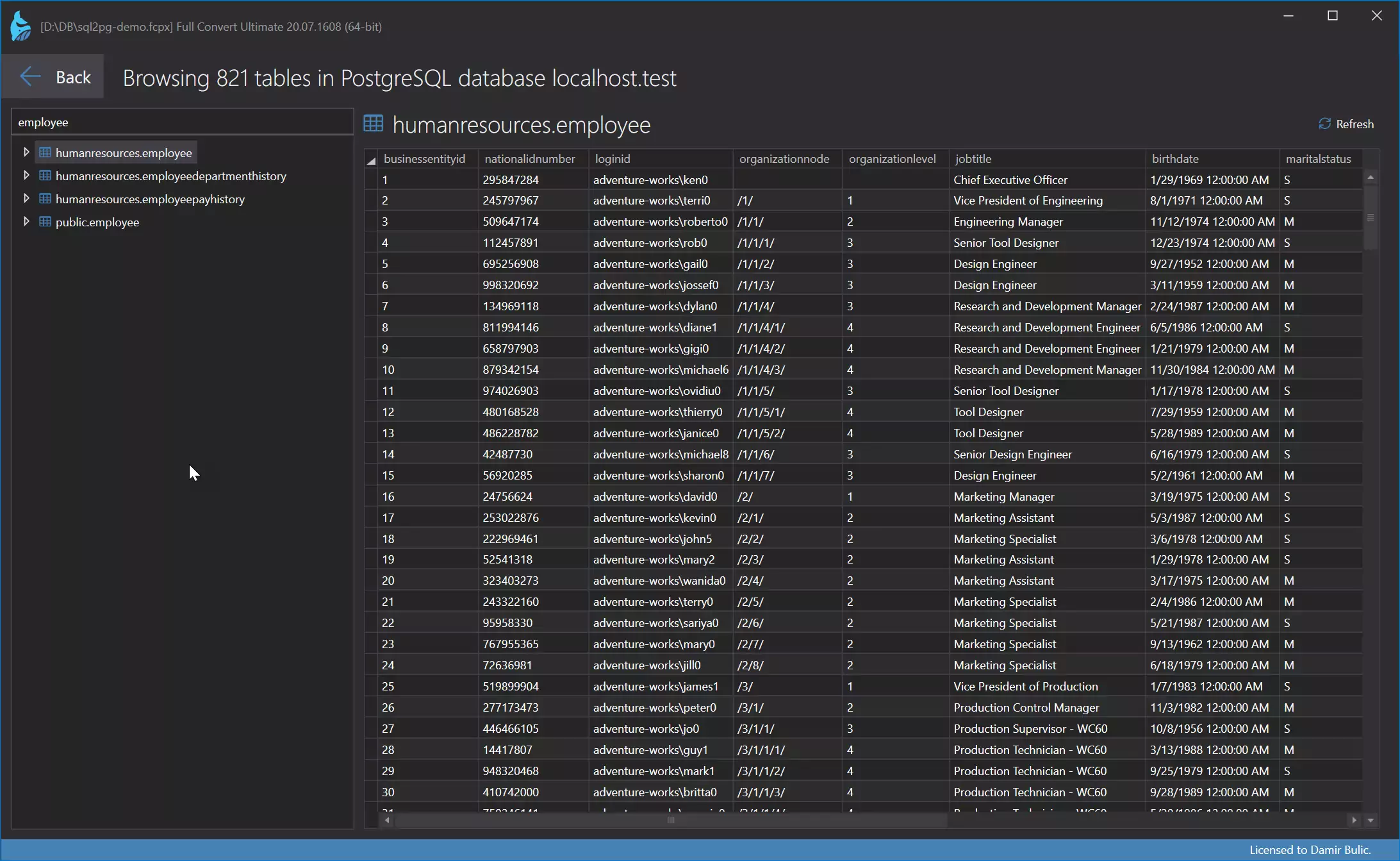
Of course, you can also examine the conversion in detail and see in-depth information for each table.
Migrate your data now.
Full Convert is used by thousands of
organizations in 100+ countries.