MAPPING TABLES
Automatic mapping
Every table in the project has a mapping: the target table it goes to, the columns that are copied, and the data type of each column in the target. Click Edit on a table in the project overview to see and change it.
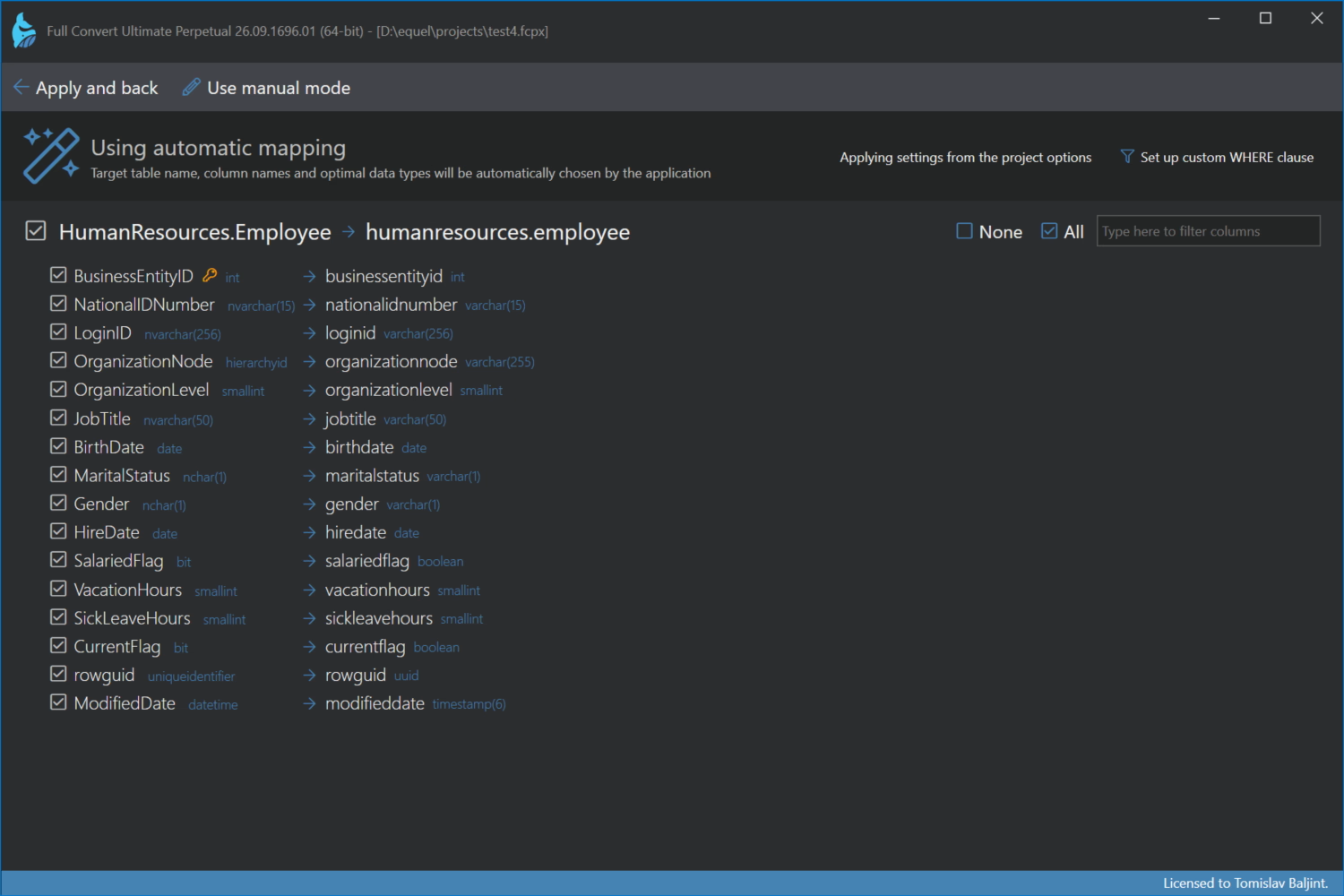
Automatic mapping is the default. The target table name is the same as the source table name, with the target database's limits on identifier length and allowed characters taken into account. Columns get the closest data types available in the target database. Your project options apply here: name casing, table prefix and the mapping rules all shape the result, which is why the screen says "Applying settings from the project options".
There is generally no need to touch anything. But a few things can be adjusted without leaving automatic mode:
Selecting columns
Untick the columns you don't want copied. All and None change the whole table at once, and when a table has many columns, type into the filter box and use Toggle listed to flip just the columns that match. Columns that are part of the key stay selected, since the key is needed to identify records.
Key and filter
Set up custom key chooses the columns that identify a record when data is compared, and Set up custom WHERE clause copies only part of the table. Both are described on the Key and filter page.
Applying
Click Apply and back to return to the project overview. If you want full control over the target table, switch to Manual mapping with Use manual mode.