Overview
Global settings
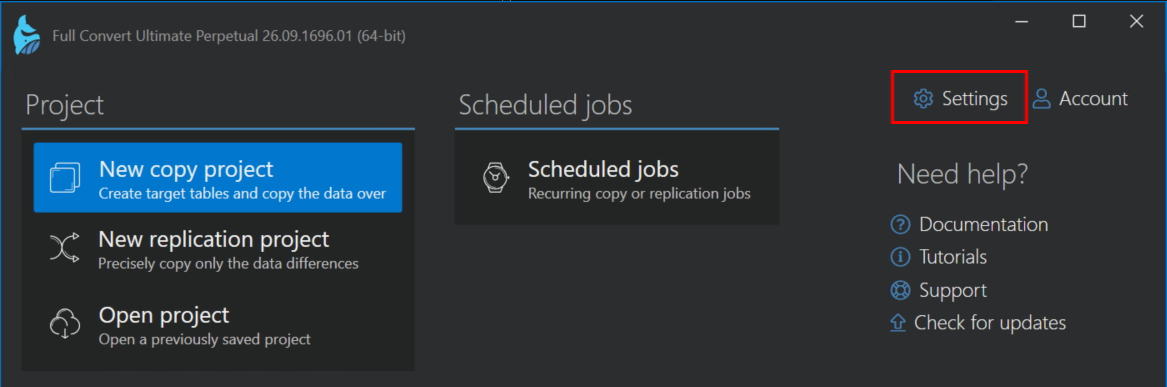
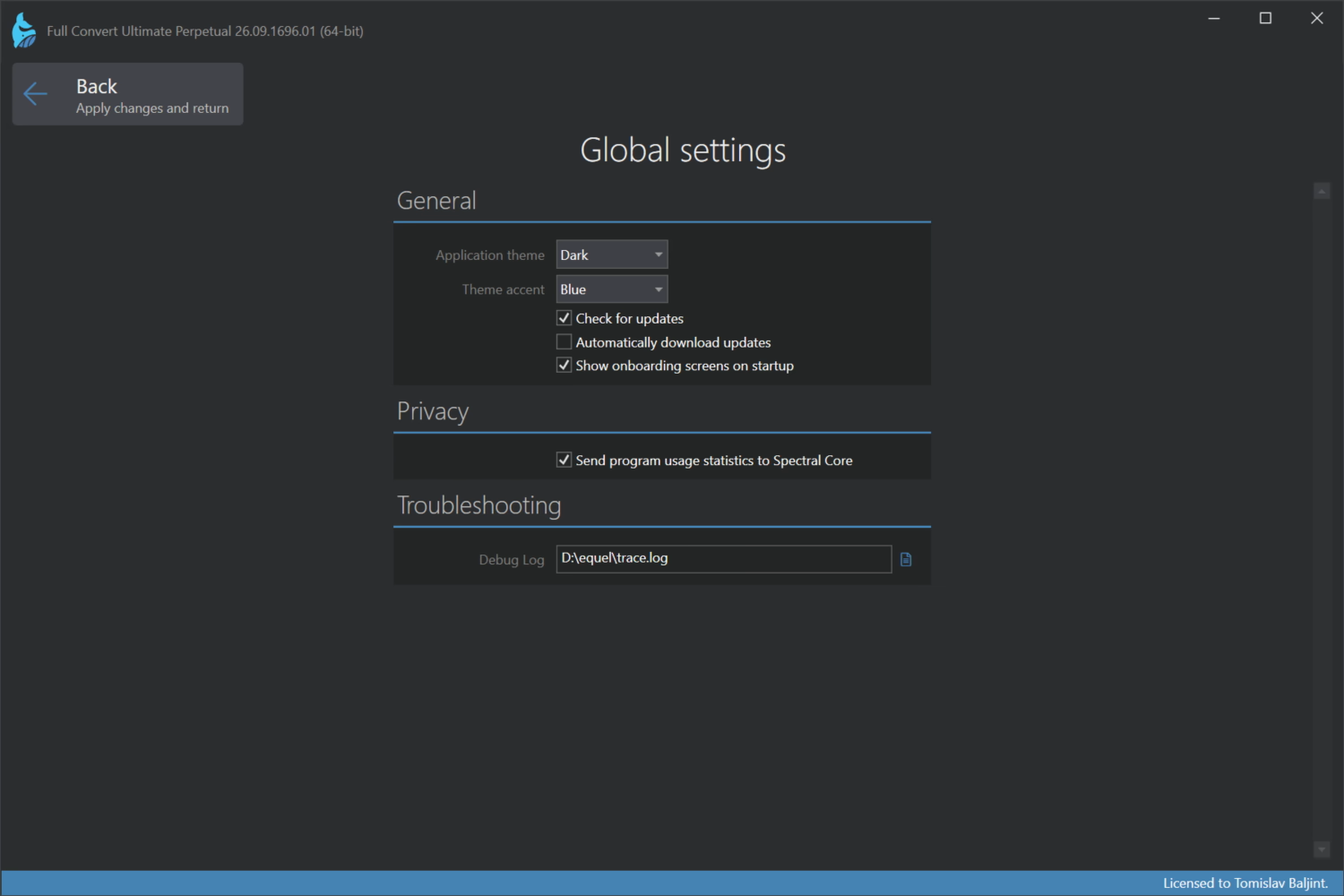
Global settings apply to the application itself, no matter which project is open. Unlike project options, they are stored on this computer and not in the project file. Click Settings on the welcome screen to open them, change what you need and click Back.
General
- Application theme is either dark or light. Theme accent picks the highlight color: blue, green, orange or purple. Both apply right away.
- Check for updates looks for a new version each time the application starts and shows it on the welcome screen. Switch it off if you upgrade only when something needs fixing.
- Automatically download updates downloads the new version in the background as soon as one is found, so installing it is a single click. With this off, you download when you choose.
- Show onboarding screens on startup shows the short welcome tour when the application starts. It is on for new installations and you can switch it off once you have seen it.
Privacy
- Send program usage statistics to Spectral Core sends anonymous data points as you use the application, so we can learn which features are used and which are ignored, and improve the user interface accordingly. Errors that happen during a run are included, which helps our support see what went wrong when you contact us. Switch it off if you would rather not send anything.
Troubleshooting
- Debug Log is a file path for a detailed log of what the application does internally. Leave it empty in normal use. Our support may ask you to fill it in, reproduce a problem and send the file.