PROJECT WIZARD
Source database
The source database is the database you already have and want copied. Full Convert only reads it and never modifies it in any way, so you can safely use your production database as the source.
Selecting the database type
First, select your database type from the list of supported databases. The list is sorted alphabetically.
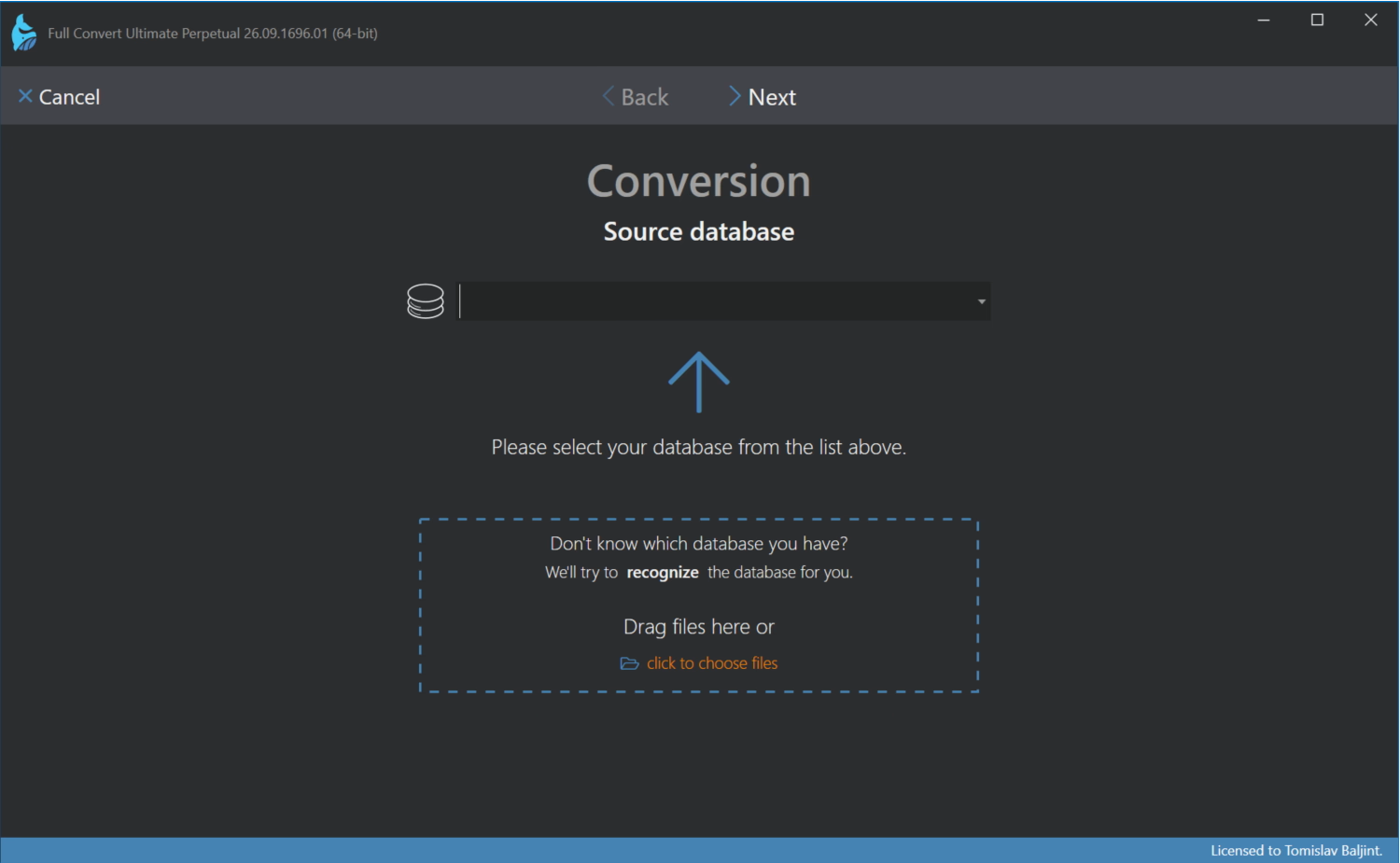
If you are not sure what you have, let Full Convert find out. Drag your database files onto the wizard, or click click to choose files and select them. Full Convert recognizes file-based databases and selects the right type and fills in the file location for you. If you are still stuck, contact support and we will help you out.
Connection information
Once you select your database type, the screen changes to let you specify the connection information. Depending on the database, that may mean selecting the database file or folder, or a server name, port, credentials and more. The usual defaults are prefilled, and for server databases the Database box lists the databases found on the server once the credentials are in.
Below the connection details is an Optional section with settings most users never need, such as the character set or Include views as tables.
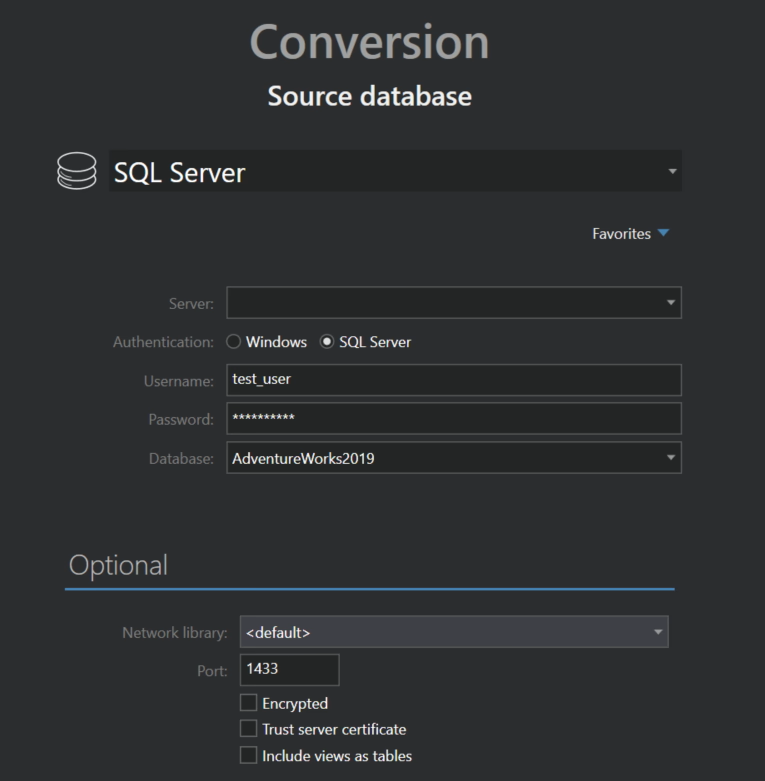
Favorites
If you connect to the same database often, save its connection details as a favorite. Click Favorites, then save current and give the connection a name. The next time you pick this database type, the favorite is one click away in the same menu. Favorites are kept per database type, stored encrypted on your computer, and removed with remove a favorite.
Connecting
Click Next to connect. If the connection fails, the error is shown right on this screen. For common problems, such as a missing driver or a blocked port, a Show me how to fix this! button opens a web page with the solution.
Detailed information on connecting to each database is in the Database Connections section.