PROJECT
Troubleshooting
When a selected table has a problem with its mapping, the project overview says so and won't start the run until it is resolved. Filter the list with Show invalid only to see just the tables that need attention.
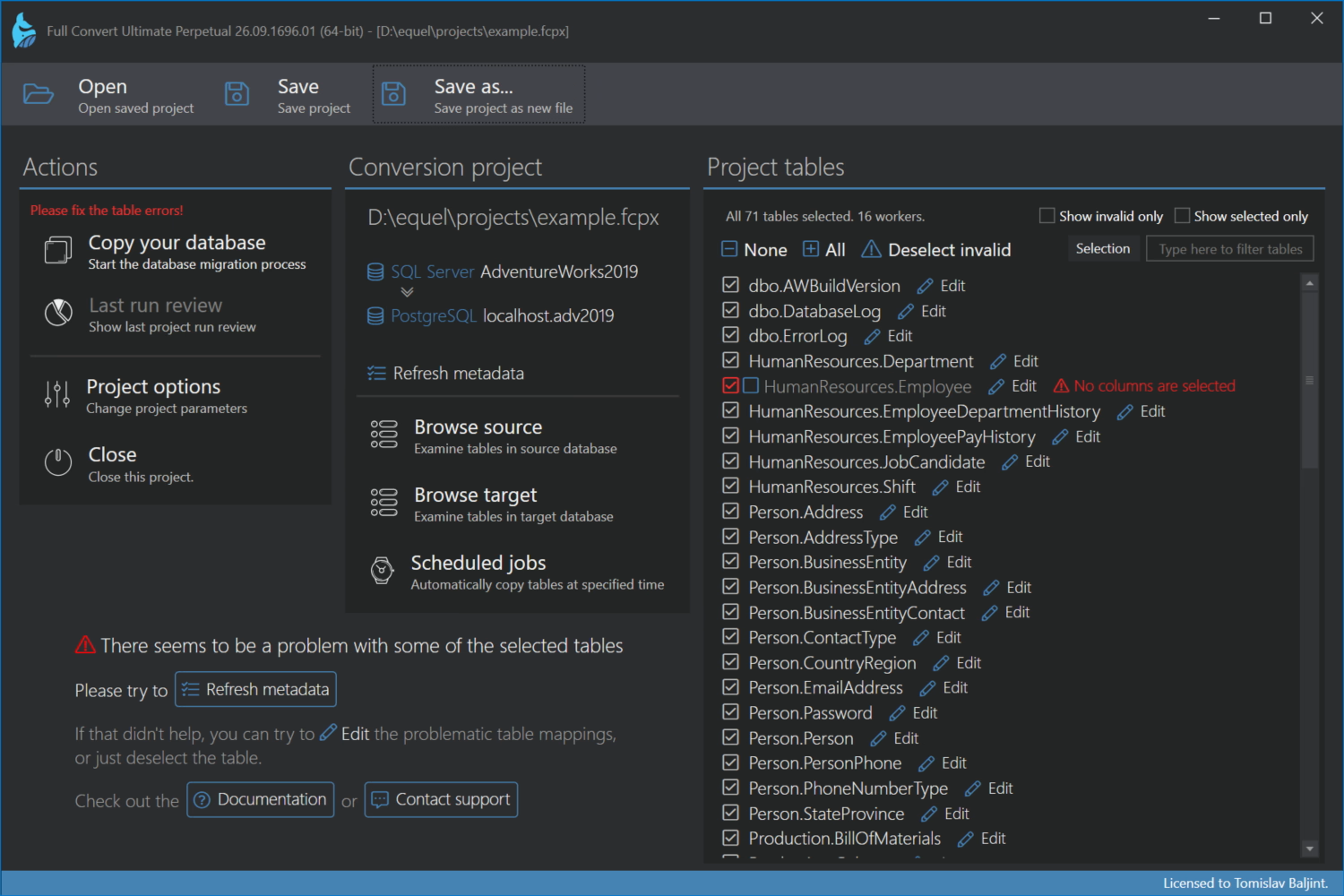
Refresh metadata
The first thing to try. Database structures change, and the project may still hold the old picture. Refresh metadata reads the tables and columns from the source and target again and re-maps all the tables. In most cases that is all it takes.
Unknown data types
Some data types have no equivalent in the target database, or Full Convert can't read them from the source. Such a column is deselected automatically and marked in the mapping. Click Edit on the table, switch to manual mode and pick the target data type yourself, or leave the column deselected if you don't need it.
Deselect what you don't need
If a table is not important, deselect it and move on. Deselect invalid does that for all problematic tables at once, so you can run the rest of the project right away and come back to the leftovers later.
Support
If you think there is a problem with the mapping or you can't find a way to make your table work, write to support@spectralcore.com and we will be glad to help. Attaching the metadata export from the Troubleshooting options lets us reproduce the mapping without access to your database.