Overview
Activation
After the purchase you receive an activation code by email. Click Activate on the trial screen, paste the code and click Activate again. The application contacts our server and is ready to use in a few seconds. If the application is already licensed and you received a new code, go to Account and click Change activation code.
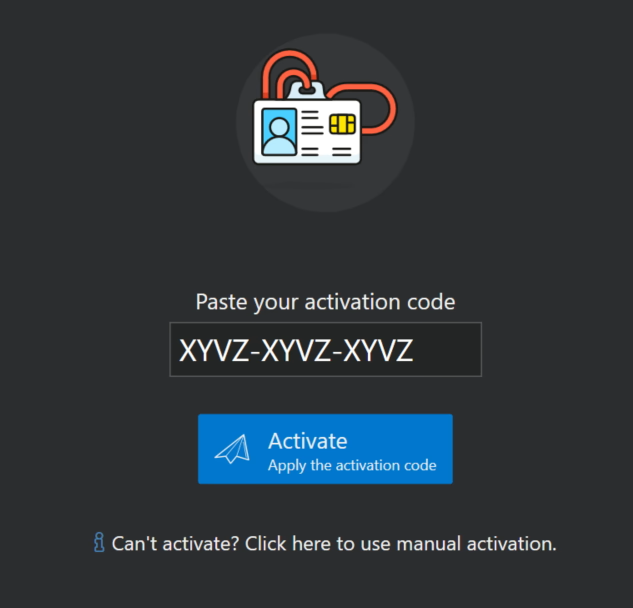
Two messages you might see:
- Maximum activations reached. Your code is already in use on all the computers your license allows. Log in at https://www.spectralcore.com/login and deactivate a computer you no longer use, or click Deactivate in the Account screen on that computer.
- License is disabled on the server. You are running a version released after your maintenance expired. Install a version released while your maintenance was still valid, or renew it.
Manual activation
On almost all computers running our application there is an active Internet connection, and we have optimized the activation process for that case. In rare cases, computers running Full Convert are locked down and separated from the web, usually due to security policies. Sometimes a custom proxy is used that we can't detect automatically. For these situations there is manual activation.
Paste your activation code into its box first, then click Can't activate? Click here to use manual activation. The application asks whether this computer has an Internet connection and guides you through the matching steps.
Computer has an Internet connection, but we can't detect it
- Copy request to Clipboard. The application generates the activation request and copies it to the Windows clipboard.
- Open activation web page. Your browser opens our activation page. Paste the request there and click Submit.
- Copy the response from the web page, then click Paste server response from Clipboard in the application.
Computer has no Internet connection
- Save activation request. The request is saved as
ActivationRequest.txt. Take the file to a computer with Internet access, on a USB stick or in any other way that works in your environment. - On that computer, open https://www.spectralcore.com/activate. Open
ActivationRequest.txt, copy its content into the box on the page and click Submit. Save the response to a file and bring it back to the original computer. - Click Load server response and select the file you saved.
Managing your license
The Account screen shows who the application is licensed to, the activation code and how long your maintenance is valid.
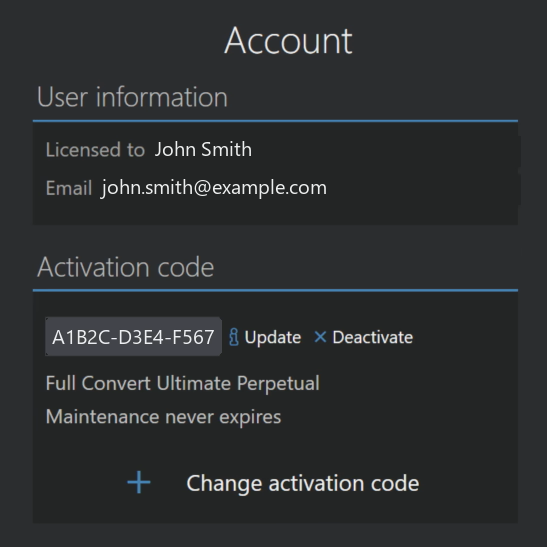
- Update refreshes the license from our server, for example after you renew maintenance or upgrade to another edition.
- Deactivate releases this computer, so the code can be used on another one. The application returns to the trial screen.
- Change activation code activates a different code on this computer.